
What is the Filing Assistant?
The Stencil Filing Assistant automates entering goods & services and specimens directly into your USPTO trademark application. It's the newest addition to Stencil, designed to carry your work from the Stencil platform straight into the USPTO's own filing forms.
Getting Started
Install the extension in under a minute.
The Stencil Filing Assistant is a free Chrome extension available to all Stencil customers. It works alongside the USPTO Trademark Center to automate the most tedious parts of filing.
- Install from the Chrome Web Store — Visit the Stencil Filing Assistant listing and click "Add to Chrome."
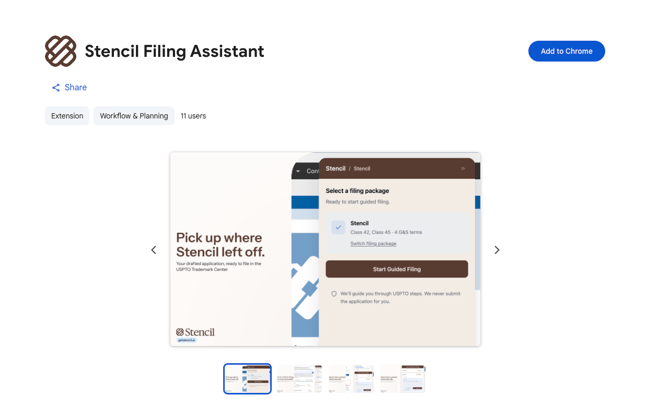
- Pin & sign in to Stencil — Click the Extensions puzzle icon in Chrome and pin the Stencil Filing Assistant for easy access. Then click it and sign in with your Stencil account credentials. Your Stencil login does not need to match your USPTO account email.
- Go to the USPTO Trademark Center — Navigate to trademarkcenter.uspto.gov and start a new trademark application. The Filing Assistant panel will automatically appear in the top right corner of your screen.
Note: The Filing Assistant only activates when you're on the USPTO Trademark Center and ready to file an application. It won't open on other websites.
How It Works
From Stencil to the USPTO, fully automated.
Note: To collapse or exit the extension at any time, use the icons in the top right corner of the Filing Assistant panel.
Once you've built your application in Stencil with goods & services confirmed and specimens attached, the Filing Assistant handles the rest. Here's the workflow:
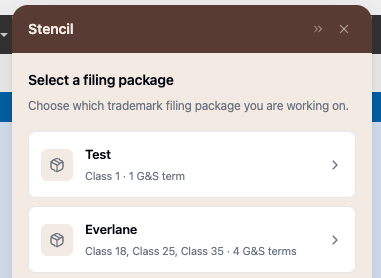
- Select your filing package — When the Filing Assistant opens, it pulls in any completed applications from your Stencil account. Select the filing package you want to work on and click "Start Guided Filing."
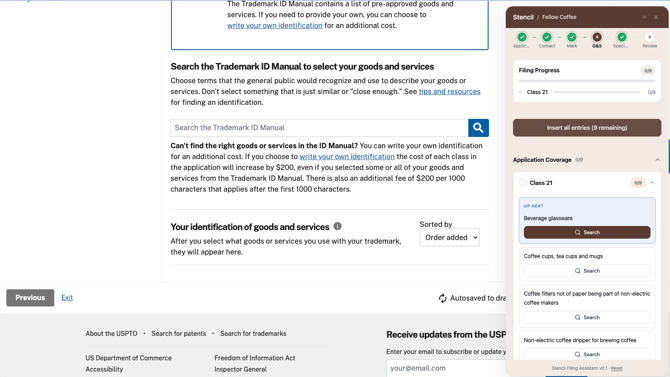
- Insert goods & services — The assistant displays all the terms you've selected for your application. Insert them one by one, or click "Insert All Entries" for full automation. The system searches each entry ID, selects it, and populates any fill-in-the-blank fields. This takes about 20 to 60 seconds depending on how many terms you have.
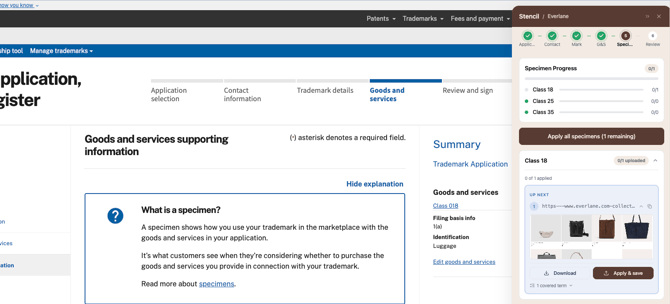
- Upload specimens — On the specimens page, the assistant can upload each specimen file and populate the goods it applies to, the access date, and the URL. Click "Apply All Specimens" for full automation, or apply them one by one. You can also download specimens to your desktop from this view.
- Review and complete — Do a quick check to confirm everything was added correctly, then continue through the remaining USPTO steps to review and submit your application.
Date of first use: The Filing Assistant cannot automatically populate the "Date of First Use" and "Date of First Use in Commerce" fields. You'll need to enter these manually for each specimen upload as a final step.