
Overview
The ID Conversion workflow takes an existing goods and services identification — from a foreign filing, an international registration, or an older US filing — and converts it into current USPTO ID Manual-compliant language.
Stencil analyzes each term, finds the closest match in the current ID Manual, and flags anything that needs your attention.
Step-by-Step Guide
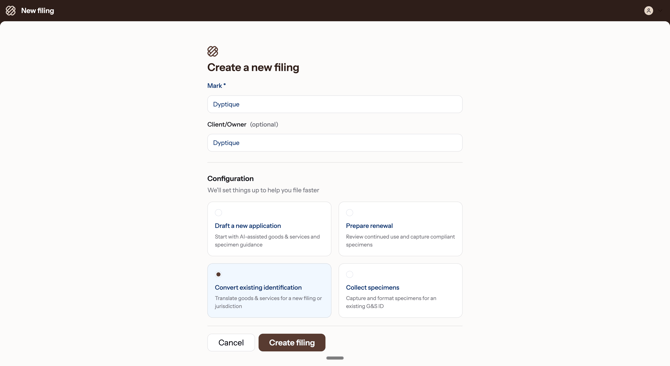
- Create a new filing — From the dashboard, click New Filing. Enter the mark name and optional client/owner, then under Configuration select Convert existing identification. Click Create filing to continue.
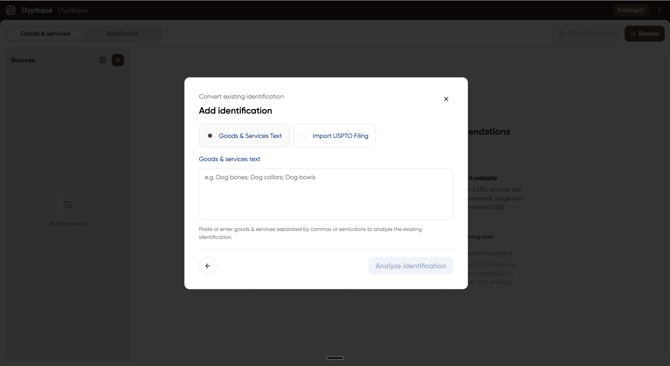
- Add the existing identification — Bring in your existing goods and services one of two ways: paste the full identification directly under Goods & Services Text, or enter a US serial or registration number under Import USPTO Filing to pull it in automatically. Click Analyze identification to begin matching against the USPTO ID Manual.
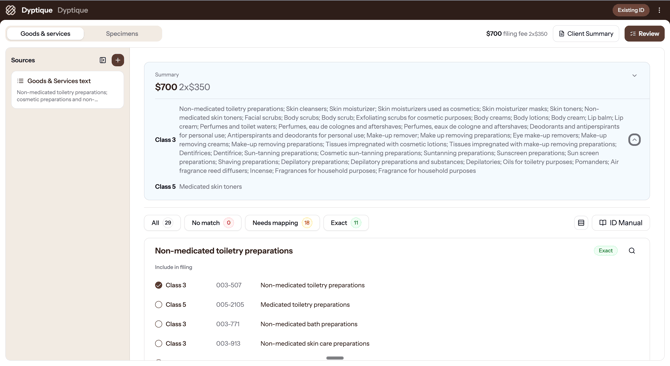
- Review your results — The Summary at the top shows your total filing fee and a breakdown by class. Each term is listed with its match status — use the filter tabs (All, No match, Needs mapping, Exact) to focus your review. Toggle classes on or off from the Summary to adjust what's included.
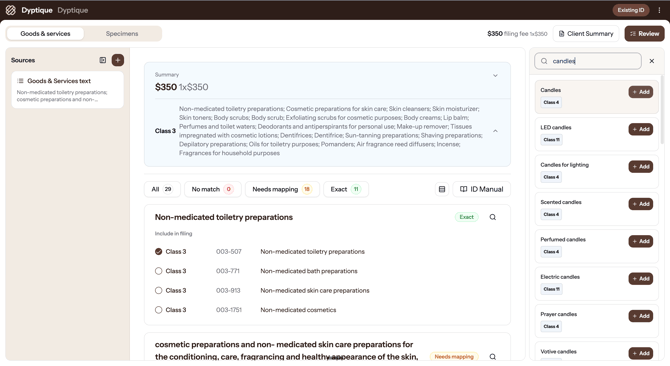
- Refine with the ID Manual — Click the ID Manual button to open the full search panel. Search for any term, then click + Add to include it directly in your filing — Stencil assigns it to the correct class automatically. This is especially useful for terms flagged as No match or Needs mapping.
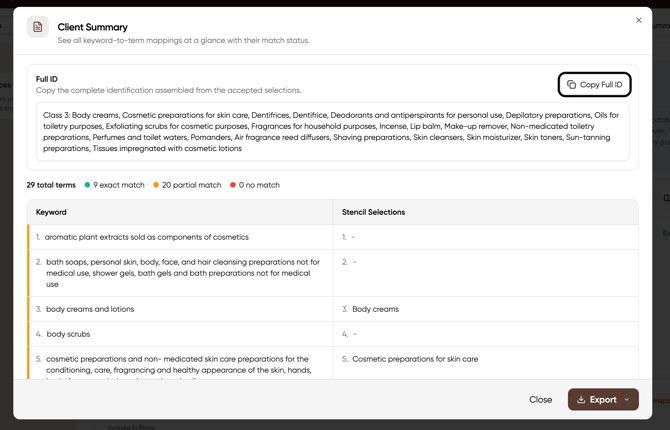
- Review the Client Summary — Click Client Summary for a side-by-side view of every original keyword mapped to its Stencil selection, including your Full ID and a Copy Full ID button. The table maps each original keyword to the Stencil-selected ID Manual term so you can verify everything before sending to your client.
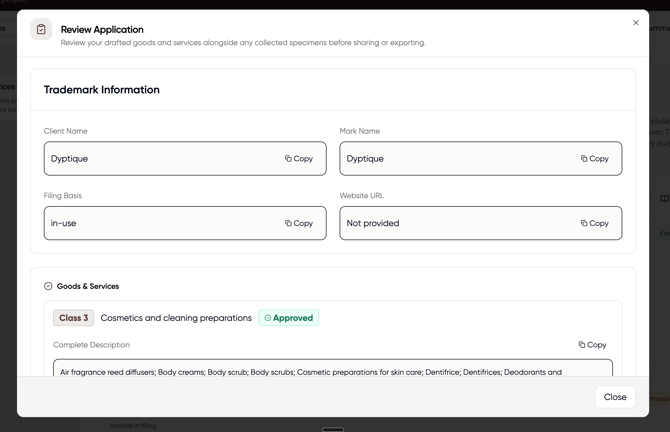
- Review & export — Click Review to see the final application details — trademark information, filing basis, website URL, and the complete goods and services organized by class with approval status. Copy individual fields or export the full filing.
💡Tip: Focus on the Needs mapping tab first — these are terms where Stencil found something close, but you should verify the match is accurate for your client's actual goods or services.