
Overview
The New Application workflow helps you draft a complete trademark application — from adding sources to generating USPTO ID Manual-compliant goods and services descriptions. Stencil's AI does the heavy lifting so you can focus on review and strategy.
Step-by-Step Guide
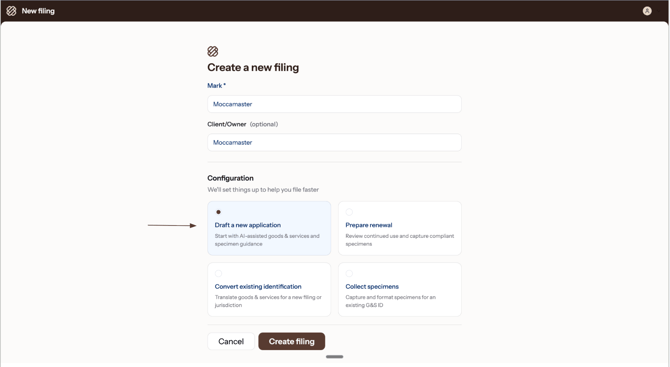
- Create a new filing — From the dashboard, click Create filing. Enter the mark name and, optionally, the client or owner name — this helps you track which marks you're working on. Under Configuration, select Draft a new application, then click Create filing to begin.
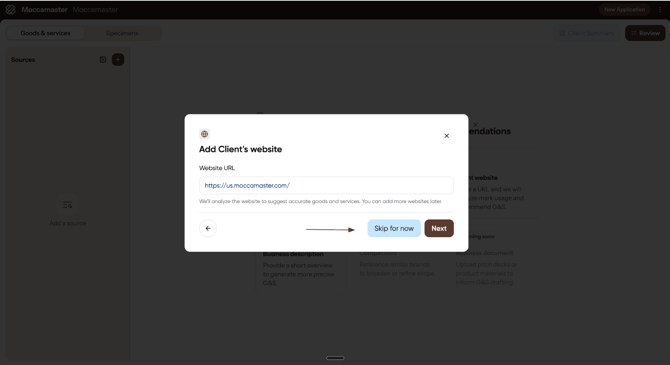
- Add your sources — Add the sources Stencil uses to generate goods & services recommendations. Start with the client's website — this works best for in-use filings or occasional intent-to-use (ITU) applications where a website is available. You can add more websites later, remove this one, or skip it entirely if no website is available.
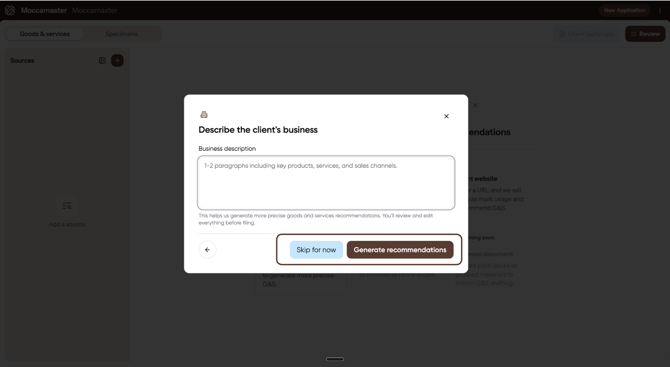
- Describe the client's business — This is another optional source. If you have a description of what the client does, include it here so Stencil can generate more precise recommendations. When ready, click Generate recommendations, or Skip for now and add sources later.
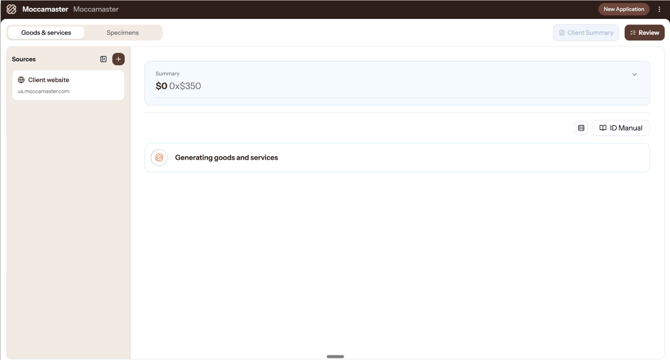
- Review goods & services recommendations — Stencil analyzes your sources and generates a comprehensive list of goods and services recommendations — your working identification. The Summary at the top shows your total filing fee and a breakdown by class; you can switch an entire class on or off. Each class expands to show individual entries with their ID Manual codes.
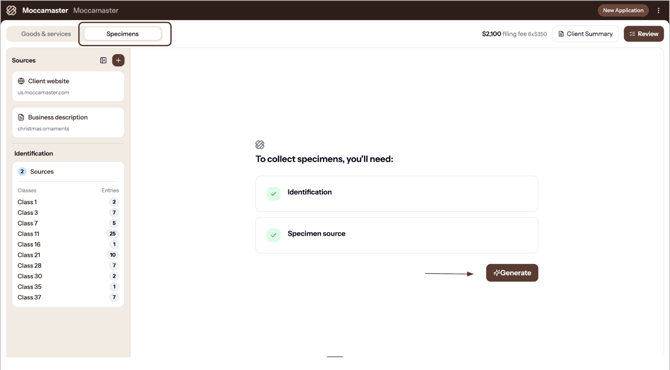
- Collect specimens — Switch to the Specimens tab and click Generate. Stencil visits the website, takes the entries you've selected, and matches a specimen to each one. This takes about 5 minutes. Review each specimen and attach the ones you want, or remove any that aren't a good fit.
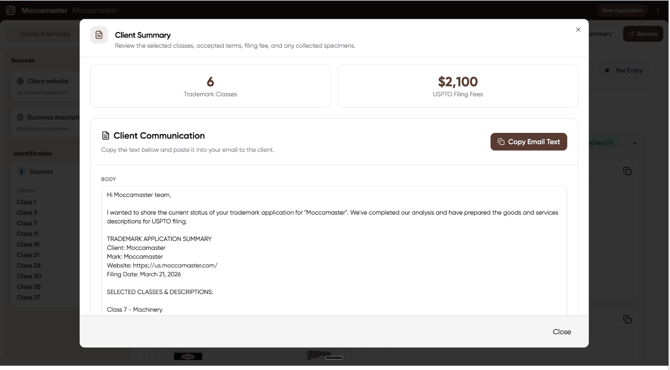
- Review and export — Click Client Summary to see your complete filing package — total trademark classes, USPTO filing fees, and a pre-populated client email. Click Copy Email Text to grab it, or use Review to export a full summary of all terms, classes, fees, and attached specimens.
💡Tip: You can add more sources at any time from the Sources panel on the left. Each new source generates additional recommendations that you can review and include.